Stock Module
The UMS Stock Module continues the movement toward consolidating all possible accounting functions under the control of one program. The Stock Module allows a utility to track, setup, issue, and more in regards to company stocks. The module also allows for an efficient method of stockholder voting.
Stock Options Setup
Use the module to set up the stock classifications and default demographics as well as enable all features of the module itself.
Click Setup>Company Stock Options to access the setup screen for the stocks. On initial setup for the Company Stock Module, four options are available to select. They include:
Enable stock certificate tracking: Enables the Stocks tab that is located on the ACP as well as the options located under the Stocks menu under the Standard UMS Menu Profile.
Allow multiple stock certificates per location: Adds the ability to issue more than one active stock certificate per location. This option should normally be disabled. Only enable this feature for non-standard scenarios where your business model allows multiple active stock certificate per location.
Shares Demographic Item: Sets the default demographic item that will be associated to stock certificates. Add
 next to
the demographic drop-down menu is available to add new demographic
items. These items and the demographic category must be of the
location type. Demographic items that are set up as a customer or
account type will not be available in the demographic item drop-down.
A default demographic item is required to save the company stock
options.
next to
the demographic drop-down menu is available to add new demographic
items. These items and the demographic category must be of the
location type. Demographic items that are set up as a customer or
account type will not be available in the demographic item drop-down.
A default demographic item is required to save the company stock
options.Stock Classifications: Allows the user to add, modify, or delete stock classes. The classes are tied to each Stock Certificate and are required to create the certificate. While there is the option to add stock classes from the Stocks tab on the ACP, the Company Stock Options is the only location where the user can modify or delete existing stock classes.
Company Stock Options Form
The following is designed to step the utility through the Company Stock Options form.
Figure 593: Company Stock Options
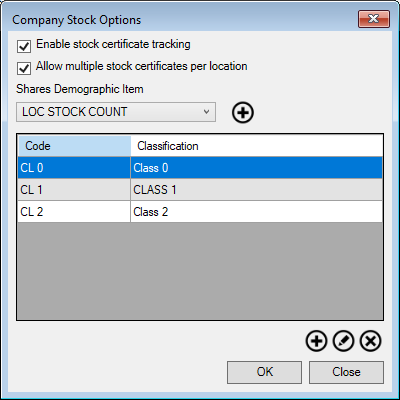
Click inside the checkbox Enable stock certificate tracking.
Select the Shares Demographic Item field from the drop-down menu. Options will be limited to whatever demographic fields have previously been entered.
Click Add
next to the drop-down menu to create an
additional demographic field.The Add
button at the bottom of the menu is to add
another Code and Classification.Click OK when complete.
Stock Tab on ACP
The addition of the Stock tab on the ACP will allow efficient tracking, assigning, and maintenance of the company stock associated to a location.
Figure 594: Stocks Tab on ACP
The fields of the Stocks tab will not have the information saved in them until the field has been left by either using the tab key or selecting outside of the field and Save has been selected.
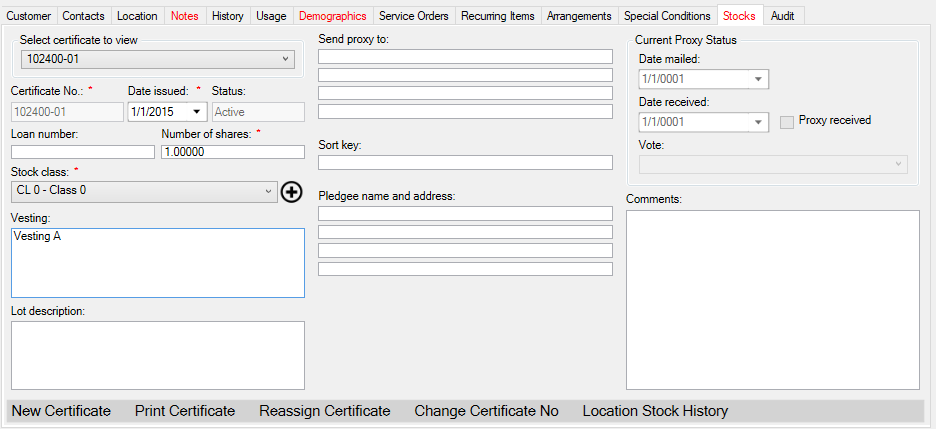
Select certificate to view: This selector will only be available when the option is enabled to allow multiple active stock certificates per location and there is more than one certificate to view. Changing this selection will refresh the stocks tab with the selected stock certificate. Changes to a stock will disable the selector until the current changes are saved or the ACP is refreshed or cleared.
Certificate No.: Number used to identify a stock. Each stock number must be unique for the given company.
Date Issued: The date the stock certificate was created.
Status: The status of the given stock certificate. Currently, the only available statuses are Active or Cancelled. Only one active stock certificate is available for each location.
Number of shares: The portion of the vote that is available for this stock. A greater number of shares indicates the stock certificate has a greater influence in the voting process.
Loan number: The loan number associated with the given stock certificate.
Stock class: The stock class that is associated with that particular certificate. The Add button next to the stock class drop-down is available to add new classes right from the screen. Once a stock class is added, it will be available under the stock class drop-down.
Vesting: Legal description of who owns the stock.
Lot description: Legal description of the property associated with the stock.
Send proxy to: There are four fields under this section. The first field is the name of the proxy, and the remainder are used to fill out the address of the proxy.
Sort key: Custom sorting value that the user can specify for reporting purposes.
Pledgee name and address: Potentially different from the Send proxy to section, this address can be completely different.
Date mailed: The date that the proxy ballot was for that stock certificate was mailed out to the Send proxy to address.
Date received: The date that the proxy ballot was received back from the Send proxy to address.
Vote: The vote registered by the proxy.
Comments: Notes about the particular stock certificate.
Stock Toolbar
The Stock Toolbar is located along the bottom of the Stock Tab on the ACP. The options for the management of stocks include:
New Certificate: Removes information in the fields of the Stocks tab so that new certificate information may be added. Once saved, the old certificates for this location will be set to canceled and the new certificate will be set as the active certificate. Activating the new certificate will not occur until Save is pressed, so clearing, refreshing, or closing the ACP without saving will remove the entered information for the new certificate and replace it with the last active certificate.
If, however, the option to allow multiple stock certificates per location is enabled, New Certificate will open a form to create a new active certificate in addition to the existing certificate.
Print Certificate: Prints out the information pertaining to the stock certificate.
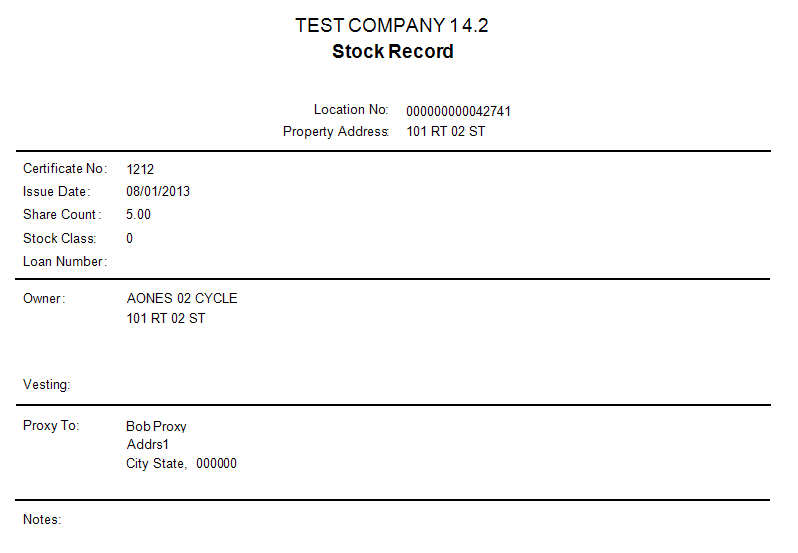
Figure 595: Print Certificate
Reassign Certificate: Sets the location associated with the given stock certificate to another location. Note that once this action is performed, the moved certificate will no longer show on the old location’s Stock History.
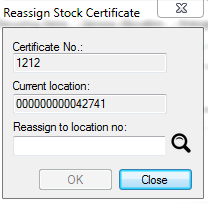
Figure 596: Reassign Stock Certificate
Change Certificate No: Allows the user to change the stock certificate number. Note that the new certificate number must be unique for the given company.
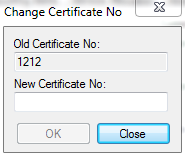
Figure 597: Change Certificate Number
Location Stock History: Displays a list of stock certificates that are associated with the given location. Selecting to view a stock certificate will pull it up on the Stock tab. You can view cancelled stock, but it cannot be edited
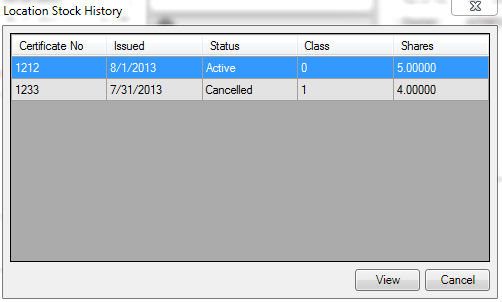
Figure 598: Location Stock History
Proxy Voting Control Panel
The Proxy Voting Control Panel is used to print proxy ballots, print voting and non-voting lists, and to reset the current proxy for the new voting year. To access the Proxy Voting Control Panel go to Stocks>Proxy Voting.
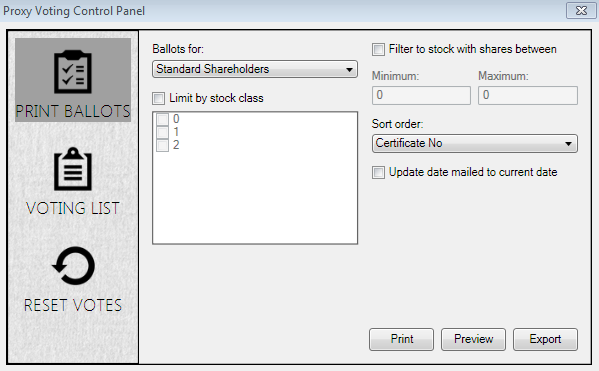
Figure 599: Proxy Voting Control Panel
Proxy Ballots to be Mailed
The first feature is the ability to print proxy ballots to be mailed. These are sent to the person listed on the stock certificate and will be returned with their vote:
Ballots for: This option is used to select the type of customer that the ballots are printed. Standard shareholders are those that have a utility status set. Non-service shareholders are those that do not have a utility status. Selecting all shareholders will return a list of both standard and non-service shareholders.
Limit by stock class: This option will limit the results of the stock certificates to the selected stock class. If limiting by stock class, at least one stock class must be selected to run the report. If not limiting, a list containing certificates of all stock classes will be returned.
Filter to stocks with shares between: This option will limit the results to stock certificates that have a number of shares between the set minimum and maximum. If limiting the number of shares, the minimum share amount must be less than or equal to the maximum share amount. If limit to stocks with shares between is not selected, certificates with any number of shares will be returned.
If the option to allow multiple stock certificates per location is enabled, this stock shares filter will filter based on the sum of all shares for the location rather than by the shares associated with the individual certificates.
Sort order: Will sort the results by the selected sort option. The options are Certificate No, Location No, and Sort Key.
Update date mailed to current date: This option will update the proxy voting portion of the stock certificates that are returned in the report. These stock certificates will have their Date Mailed field set to the date that the report was run. Once a Date Mailed has been set, the Date Received and Proxy Vote can be controlled from the Stocks tab on the ACP.
Print Ballots Report
The following fields are available for this report:
UMS Company Name
Certificate No
Location No
Service Address
Date Issued
Status
No of Shares
Loan Number
Stock Class
Vesting
Lot Description
Send Proxy To Name
Send Proxy To Address 1
Send Proxy To Address 2
Send Proxy To Address 3
Sort Key
Voting List
The second feature is the ability to print a list of stock certificates that contain votes and a list of certificates that do not have votes.
Figure 600: Proxy Voting List Control Panel
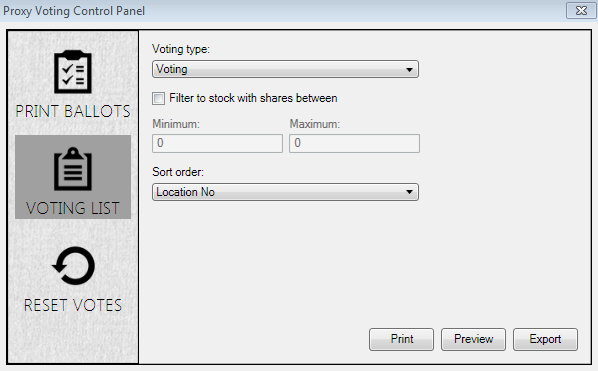
Voting type: This can be used to select whether the type of report is a list of Voting certificates or Non-voting certificates.
Filter to stock with shares between them: This will limit the result to stock certificates that have a number of shares between the set minimum and maximum. If limiting the number of shares, the minimum share about must be less than or equal to the maximum share amount. If limit to stocks with shares between is not selected, certificates with any number of shares will be returned.
If the option to allow multiple stock certificates per location is enabled, this stock shares filter will filter based on the sum of all shares for the location rather than by the shares associated with the individual certificates.
Sort order: Will sort the results by the selected sort option. The options are Location No, Sort Key, Shares (Ascending), Shares (Descending), and Certificate No.
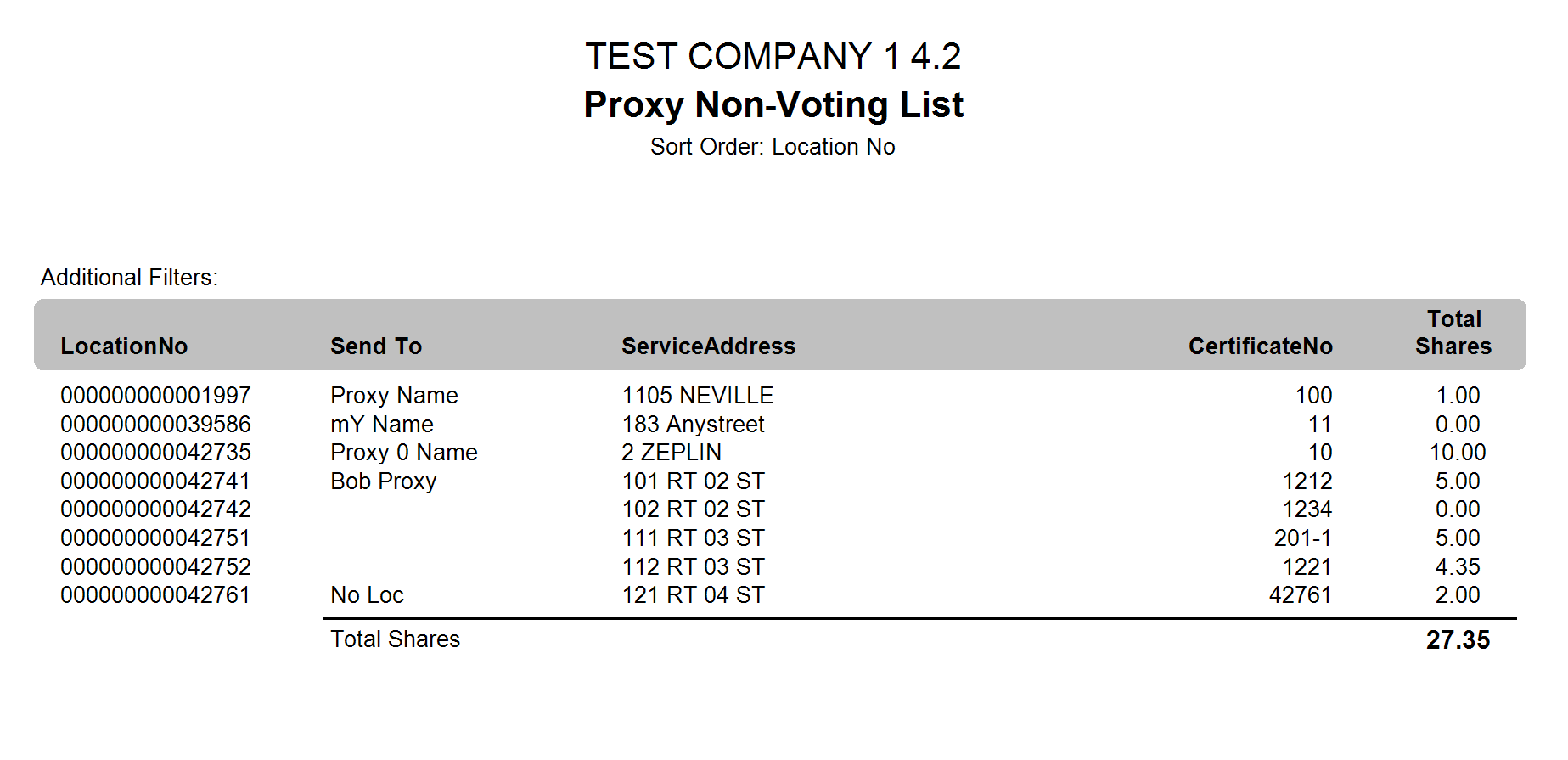
Figure 601: Proxy Non-Voting List
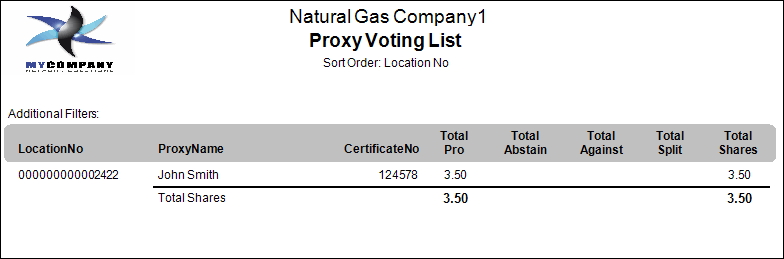
Figure 602: Proxy Voting List
Reset Votes
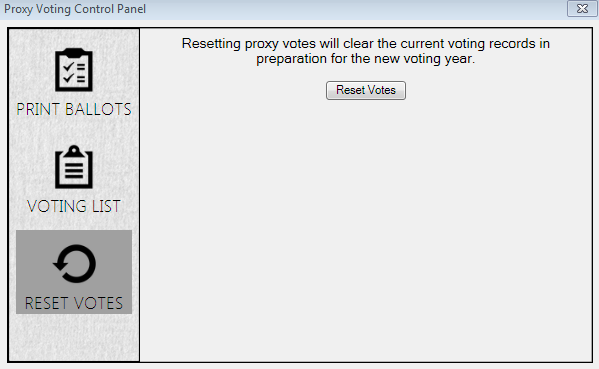
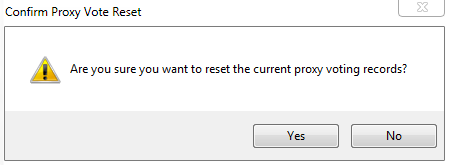
The Reset Votes feature provides the ability to reset all of the proxy voting results for all active stock certificates. This is necessary to clear out previous proxy voting results in order to perform a new vote for the current proxy year. Clicking Reset Votes will set the proxy vote, date mailed, and date received values of the active certificates to default values. A confirmation screen will pop up to verify you want to reset the votes.
Figure 603: Reset Votes
Figure 604: Confirm Proxy Vote Reset
UMS Stock Report
The Stock Report provides a master list of shareholders. The report can be accessed by going to Stock>Stock Report. In addition to the standard UMS reporting limit options, the Stock Report allows you to apply the following additional filters:
Limit to stock certificates issued within a date range.
Limit to specific stock classifications.
Non-service certificate options:
Include certificates
Exclude certificates
Non-service only
Certificate Status:
Active only
Cancelled only
Active and Cancelled
Sort Order:
Certificate No
Sort Key
Location No
Stock Classification
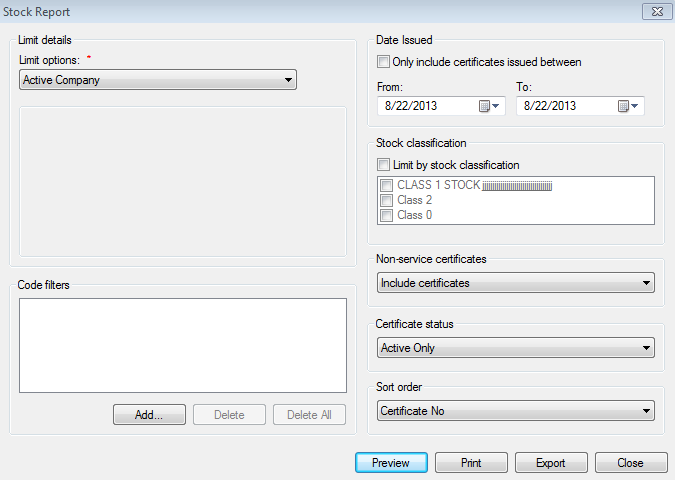
Figure 605: Stock Report
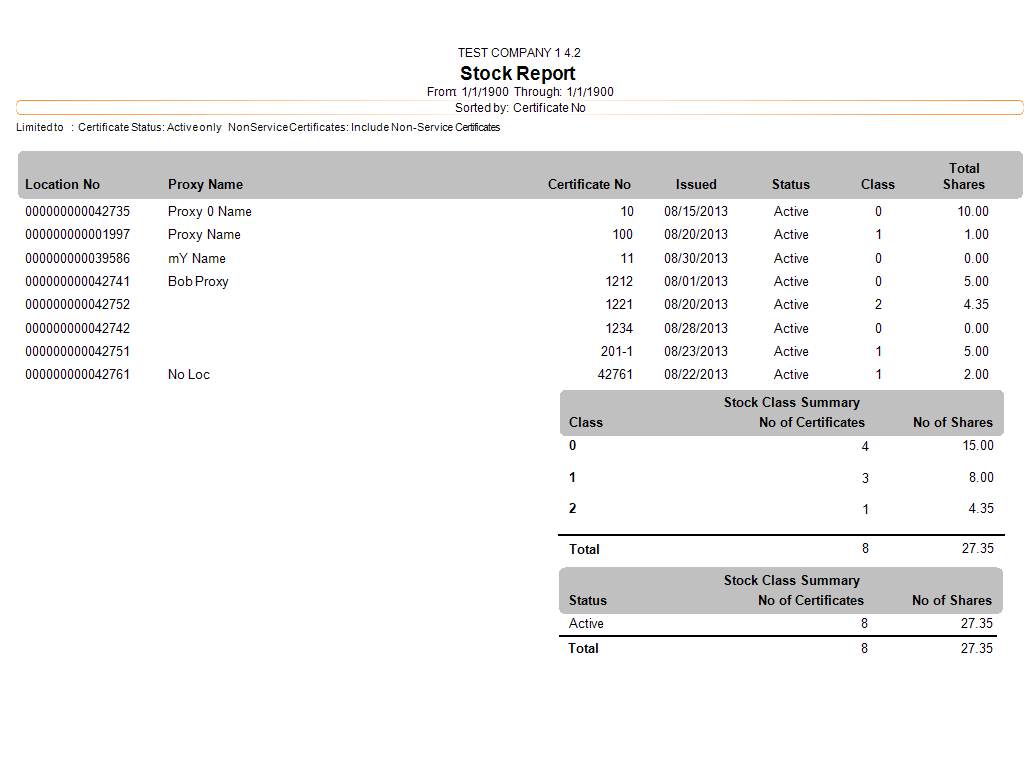
Figure 606: Stock Report Printout
UMS Stock Mailing Labels Report
The Stock Mailing Labels Report provides you the opportunity to print mailing labels for the proxy and pledgee addresses for Active stock certificate shareholders. The report can be accessed by going to Stock>Mailing Labels. The standard system report will print mailing labels compatible with Avery 5160 address labels template. By using the Microsoft Work Mail Merge feature in UMS, a custom mail merge document can be created using the stock shareholder information.
The Mailing Labels Report allows for these additional filters:
Limit to stock certificates issued within a date range.
Limit to specific stock classifications.
Option to include pledgees.
Sort order:
Certificate No
Sort Key
Location No
Route
Stock Classification
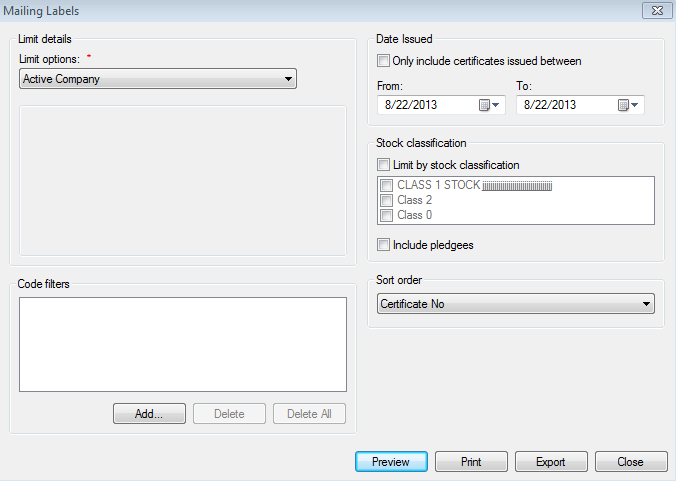
Figure 607: Mailing Labels for Stocks
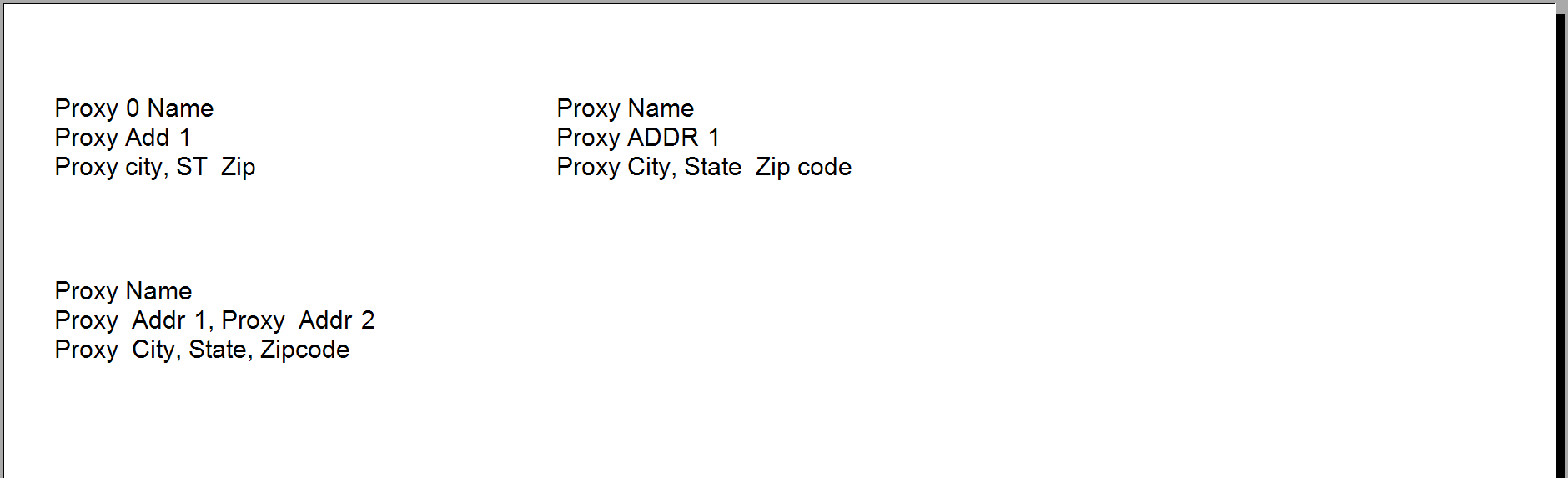
Figure 608: Mailing Labels Example
Available Mail Merge Fields:
Certificate No
Location No
Service Address
Date Issued
Status
No of Shares
Loan Number
Stock Class
Vesting
Lot Description
Send to Line 1
Send to Line 2
Send to Line 3
Send to Line 4
Sort Key
Is Pledgee Flag
UMS Stock Count Shares Report
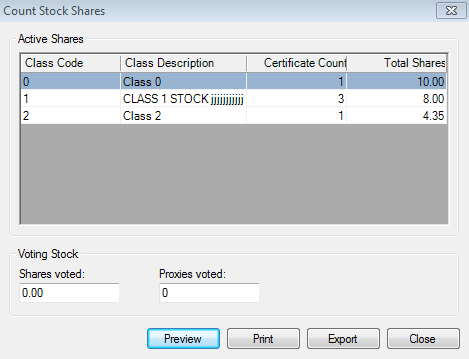
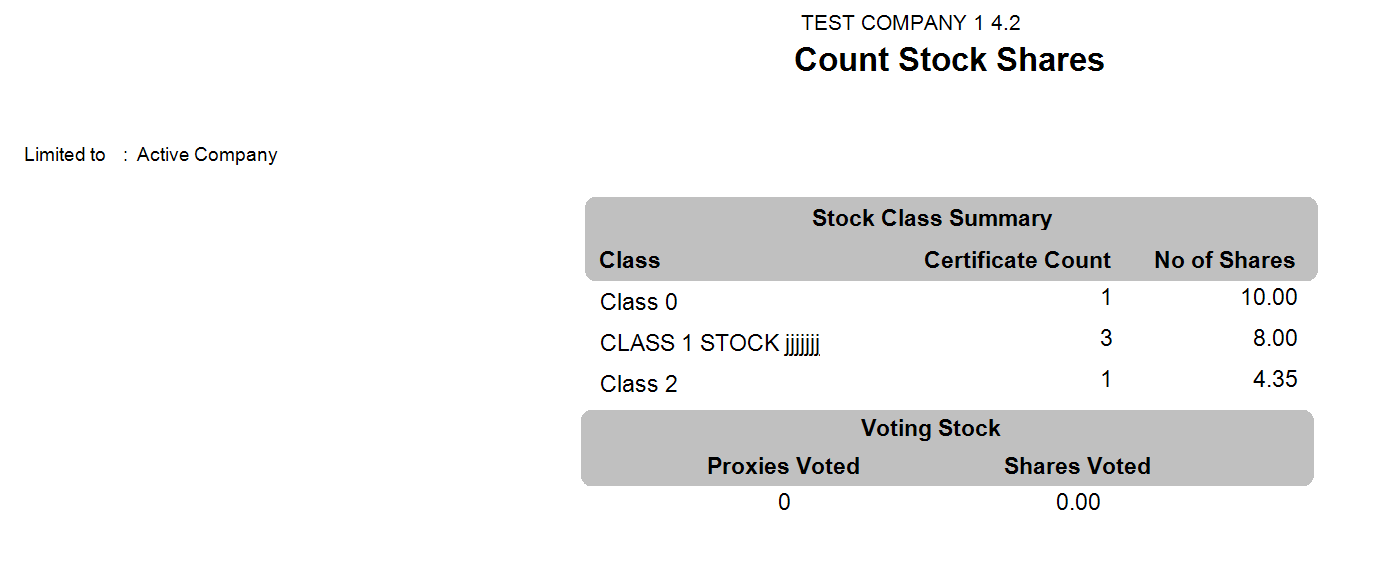
Count Shares provides a quick access inquiry that provides a count of the shares and certificates by stock class and the total number of certificates and shares. It also shows the number of shares and number of proxies that have returned votes. This summary information can also be printed.
Figure 609: Count Shares
Figure 610: Count Shares Report