Account Level Budget
Through this function users can begin to calculate, review, and edit account level budgeting.
Setting up Account Level Budget
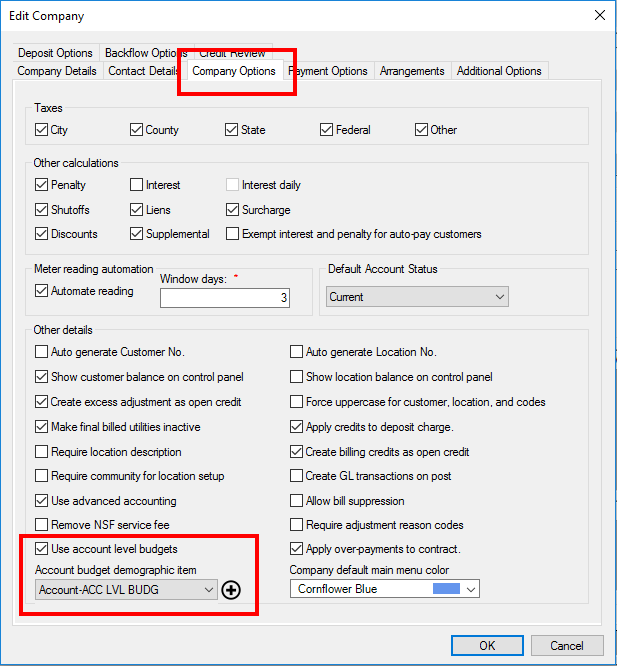
Turn on Account Level Budget Option
Go to Setup, choose Company, and select Company Options tab.
Check the box for “Use account level budgets”.
If you already have a Demographic Item setup, please select the demographic item you wish to use for this company. Otherwise, press the Add button to create new Demographic Item.
Figure 618: Company Option tab with Use Account Level Budget option
Set up an Account for Account Level Budget
If the demographic item has not been set up:
First, create a Demographic Category and give it a type of Account.
Create a Demographic Item with Account Demographic Category, and give it a multiplier value.
Open the desired account in Control Panel. Once here, select Demographic Tab and add a new Demographic Item.
Finally, select the correct information created in the above steps and add a desired value you wish to charge the account.
Note: Please refer to Demographic section under Account Wizard under Customer Control Panel for instruction on how to create Demographic Category and Demographic Item.
Update Budget Process
From Menu Bar, select Billing>Calculations>Account Level Budgets. A dialog box will appear.
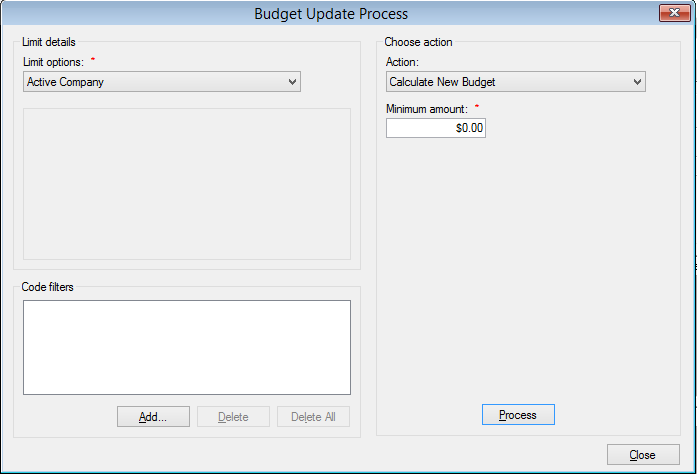
Figure 619: Update Budget Process
Select the desired Limit options, such as Route or Cycle
Click Add and add the desired Code Filter to further limit the accounts that are being processed
Click the drop down list arrow and select the applicable Action. Options for Action include:
Calculate New Budget: This option will calculate a new budget by requesting a minimum account. Clicking Process will then calculate a new budget for every account covered by the Limit Options.
Review/Edit Budget: This option allows the user to review budgets that were calculate in Calculate New Budget. A new screen will appear with the title “Review/Edit New Budget”, which will be discussed in the next section.
Update Budget: This option will update the calculated budgets for all the accounts covered by the Limit Options. Click Process when you are ready to update budgets.
Enter the minimum amount the user will be charged in Minimum Amount text box.
Review/Edit Budget
Review/Edit Budget screen allows user to review and edit new budgets that have been calculated by the Account Level Budget process.
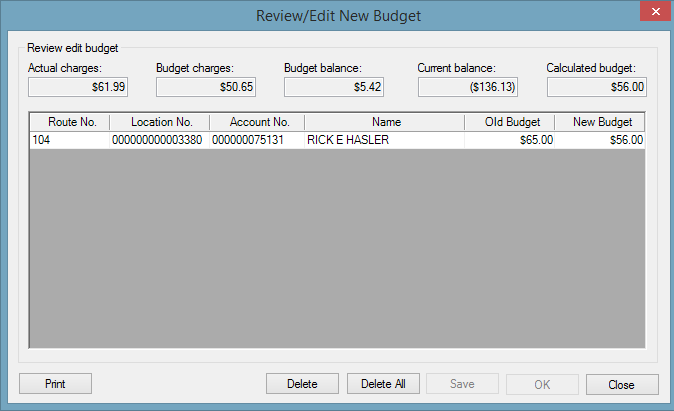
Figure 620: Review/Edit New Budget Screen
Available information:
Actual charges: Total charges on the Account (excluding tax) divided by the number of bills.
Budget charges: The Actual charges added to 1/12th of the Current balance.
Budget balance: Unpaid budget divided by 12.
Current balance: The full current balance on the account (including tax).
Calculate budget: The Budget charges added to the Budget balance. This number is rounded to the nearest dollar amount.
Route No.: Route number for the information found on the same row.
Location No.: Location number for the information found on the same row.
Account No.: Account number for the information found on the same row.
Name: Customer name for the information found on the same row.
Old Budget: The Demographic Value that has been added to the Account
New Budget: Same as Calculated budget.
Available actions:
The user may simply review the entries in the grid and press Close to continue the process.
The user may also edit the New Budget column in the grid and Save the changes.
The user may Delete the currently selected row from the calculated budgets.
The user may Delete All of the rows from the calculated budgets.
The user may Print a report that shows the information in the grid in a printable format.