Conservation Rate
In certain geographic areas, customers are given an allotment for expected usage during the bill period. Often the calculation of the allotted usage is determined by a very complex equation. This equation includes variables such as square footage of the building, evapotranspiration, number of residents, etc. UMS now provides the ability to set up a 'Conservation Rate' which uses specific tiers based on the formula and the variables/demographics setup for the customer/location. Conservation Rates are composed of a set of tiers that specify which formula to use until a predetermined percentage of the usage allotment is met, then the next tier will be used.
Formula
Formulas are a set of mathematical expressions that result in a number during billing. These formulas can be constructed from Variables and Demographic Items.
Manage and Setup Conservation Rates
To manage Conservation Rates in UMS, go to the Setup Rates menu item. Once there you can edit an existing Conservation Rate, or click add to create a new Conservation Rate. This will launch the Conservation Rate window. From here you can set up the Code, Description, and other common attributes of a rate. The part specific to Conservation Rates can be found on the Conservation tiers **tab. From there, you can set up any number of tiers. Each tier has a **Charge amount per unit, a max percentage of allocation used for the tier to be in effect, and a formula selection.
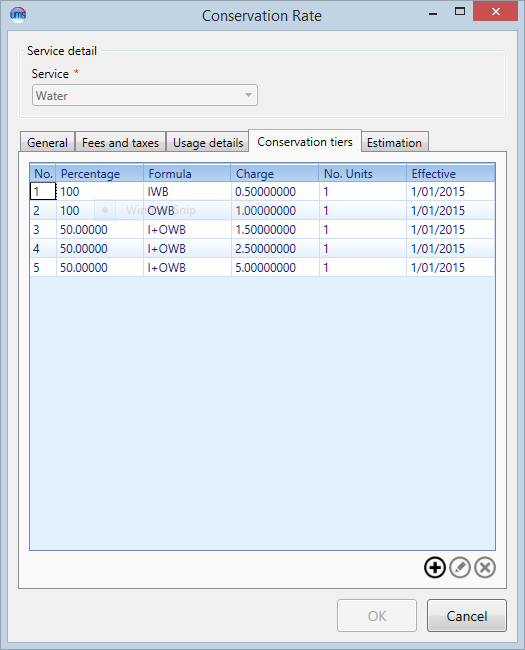
Figure 621 - Conservation Rate
Manage and Setup Formulas
Conservation Rates utilize Formulas. Formulas can be set up from the Conservation Rate screen, or you can go directly to the Setup Formulas screen by selecting the Setup Formulas menu item in UMS.
A new formula may be added by selecting the
 icon
iconAn existing formula may be edited by selecting the formula from the list and then selecting
 icon
iconAn existing formula may be deleted by selecting the formula from the list and then selecting the
 icon
icon
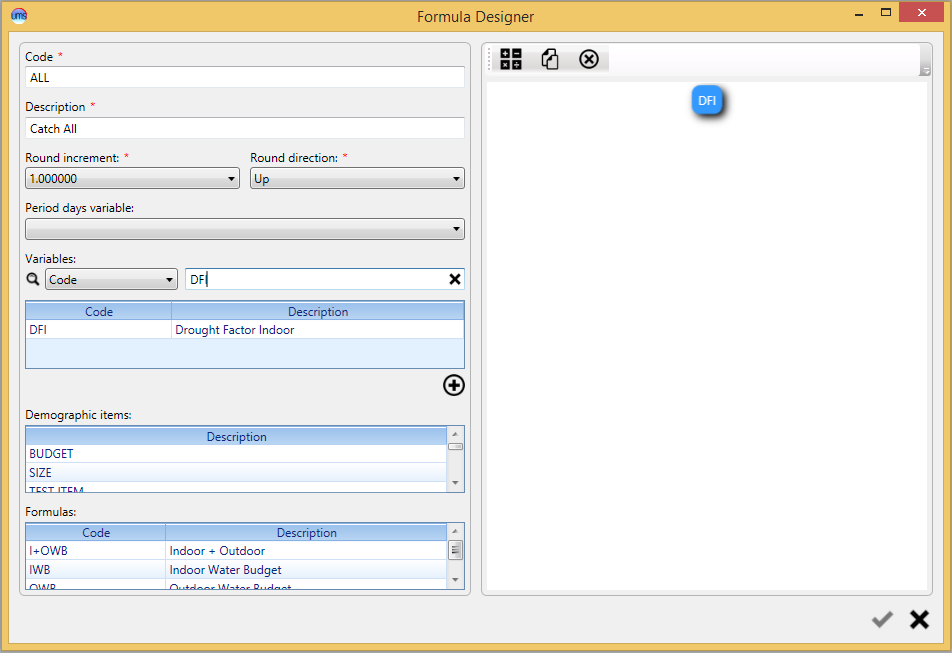
Figure 622 - Formula Designer
The Formula Designer window sets up the actual billing formula to be used. To create a new billing formula:
Enter a code for the formula in the Code field
Enter a brief description of the formula in the Description field
Select the precision for rounding calculated values in the Round Increment field
Select the direction to which values are to be rounded in the Round Direction field
Select the variable for which the dates of the formula will be valid from the Period Days Variable drop-down box
Use the items from the Variables, Demographic Items, and Formulas lists to build the rate formula
Double-click/right-click an item to add it to the formula
Variables will be added to the formula and used within it in the order in which they are added. To create a new variable from Formula Builder, click on the
icon
under Variables grid. User can also search for an existing
variable by entering part or all of either the “Code” or
“Description” fields into the filter above the Variables grid
with the appropriate field selected from the drop-down box.
You will see the formula being built in the designer area on the right-hand side of the window. A formula is built one level at a time, as shown in the designer area of the window. Each level of the formula may be viewed as a set of parentheses added around the most recently included items. To make a change to an item or operation in the formula:
Select the level of formula to which the edit is to be made
Selecting a different operation from the
 icon above will change the operation on the selected level
in the formula
icon above will change the operation on the selected level
in the formulaDouble-clicking a new variable, demographic item, or formula while a level of the formula is selected will insert the new item into the selected level as an Add operation
Right-click a variable, demographic item or formula and choose one of the four operation (Add, Subtract, Multiply or Divide) to insert the new item into the selected level with the selected operation.
Selecting the
icon above the formula will delete
all additions to the formula at and above the selected levelThe formula may be copied to the computer’s clipboard by selecting the segment of the formula to copy and then selecting the
 icon above the formula
Changes to the formula may be saved by selecting the
 icon at the bottom of the window
During calculation, the variable details and the demographic variances are not prorated. The variable/variance should be effective on or before the period start date and expire on or after the period end date to be included in the calculation.
Setup Formula Variables
Custom rate variables may be added in the Setup menu using the “Setup Variables” option.
A new variable may be added by selecting the
iconAn existing variable may be edited by selecting the variable from the list and then selecting the
iconAn existing variable may be deleted by selecting the variable from the list and then selecting the
icon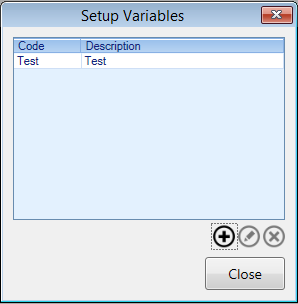
Figure 623 - Setup Variables
In the Variable Detail window, the rate variable may be configured.
Enter a rate code in the Code field
Enter a brief description in the Description field
Sum Values instructs the billing system to Sum the values where the To Date is between the Service Period Start and End Date. The from date is ignored when this check box is checked. For a consumption based rate the service period days are typically the Prior and Current Read Date.
Select the + icon at the bottom of the window to enter information about the variable
Enter dates in the From and To fields to indicate the dates for which the rate’s value is to be applied
Enter the rate variable’s value in the Value field
An existing value may be deleted from the variable by selecting the value and then selecting the
icon from the bottom
of the window.
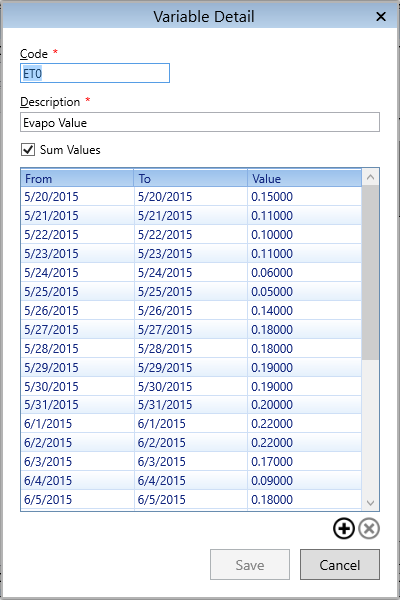
Figure 624 - Variable Detail