General Ledger
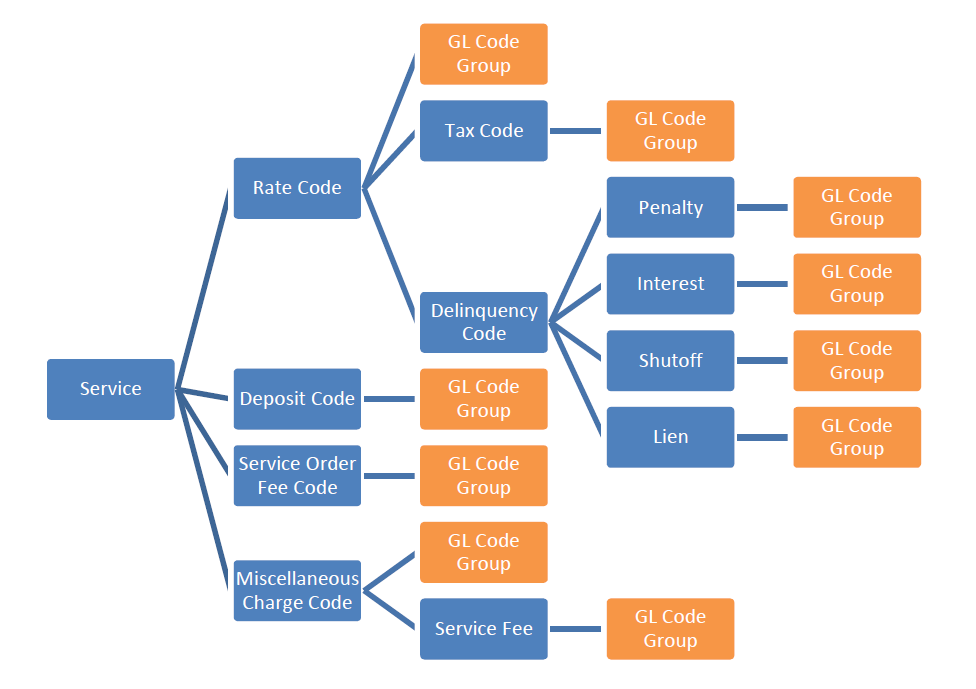
Figure 566: General Ledger Flowchart
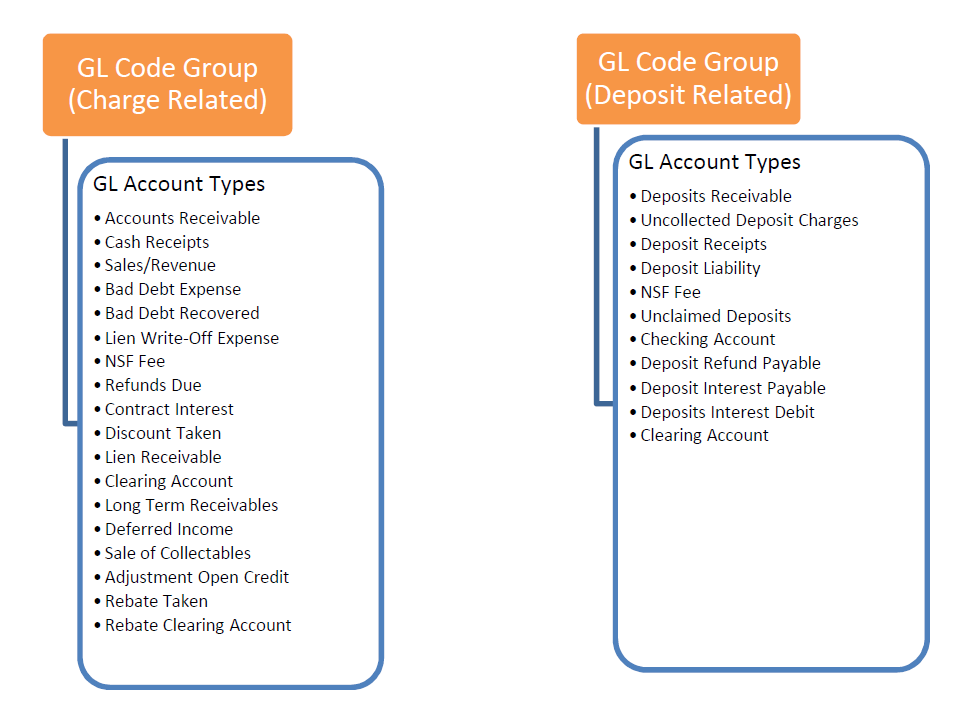
Figure 567: General Ledger Code Groups
General Ledger Setup in UMS
Setting up the GL Chart of Accounts
To create a chart of accounts, do the following:
From the menu bar, select Setup>General Ledger>Chart of Accounts. The Setup GL Company dialog box displays
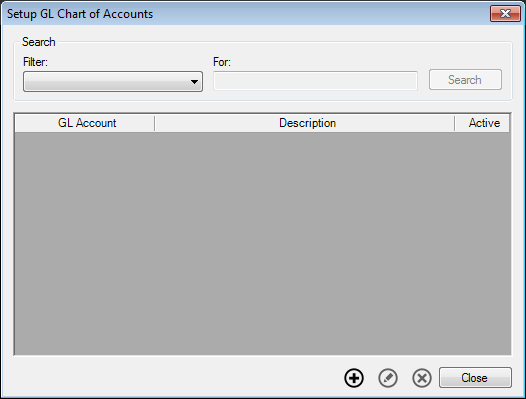
Figure 568: Setup General Ledger Chart of Accounts
Click Add. The New GL Account dialog box displays
Account No. Type the account number. To make it active, click in the Active checkbox
Description. Type a description for this account number
Click OK. When you return to the Setup GL Chart of Accounts dialog box, this entry is shown when All Record (No Filter) is selected
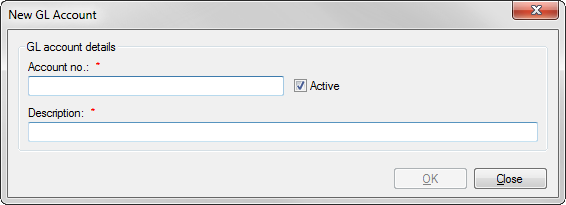
Figure 569: Adding a General Ledger Account
Setting up the GL Code Groups
Through this function, you create codes that are used to group a set of GL accounts for easy assignment of GL accounts to individual rate and/or charge codes.
From the menu bar, select Setup>General Ledger>GL Code Group. The Setup GL Code dialog box displays
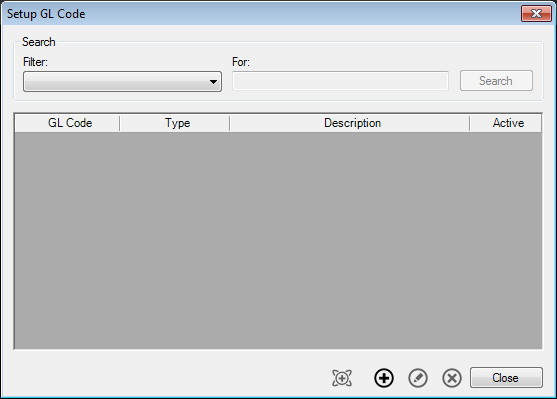
Figure 570: Setup General Ledger Code
Click Add  . The New GL Code Detail dialog box displays
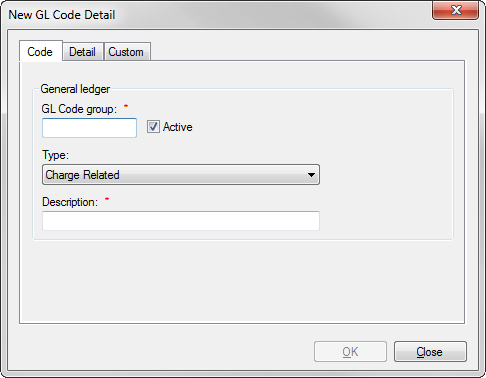
Figure 571: New General Ledger Code
GL Code Group. Type a code to identify this group. To make the code active, click in the Active checkbox
Type. Click the drop-down list arrow, and select from the available types
Charge Related refers to all GL code groups related to billing
Billing charges are Assets in accounting and viewed by the billing system as accounts receivable
Deposits are treated by the software as liabilities since they are to be returned to the customer at some point. Thus, Deposit Related codes would be viewed differently
Description. Type a description for this code group
Click the Detail tab.
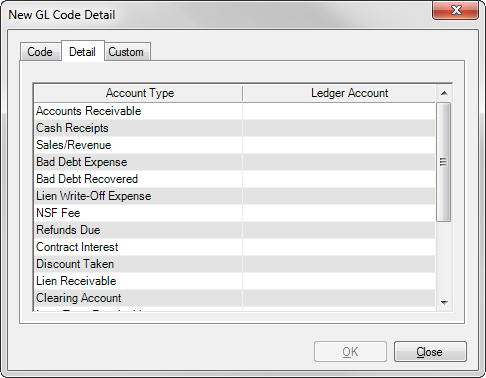
Figure 572: New General Ledger Code Details
Locate the Account Type under which this code falls
Move to the Ledger Account field, click the drop-down list arrow, and select the applicable GL account to associate with this code
Click OK
Assigning GL Code Groups
Once the GL Code groups have been created they need to be assigned to individual rate and/or charge codes. This includes any code in UMS that would result in a financial transaction such as rate codes, delinquency codes, deposit codes, tax codes, miscellaneous charge code, etc.
The General Ledger Report
General Ledger transactions are posted simultaneously along with any transactional posting performed in UMS once GL Code groups are assigned appropriately. To review the general ledger transaction you may run the general ledger report.
From the menu bar, select Reporting>Financial Reports>General Ledger Report. The General Ledger Report form displays.
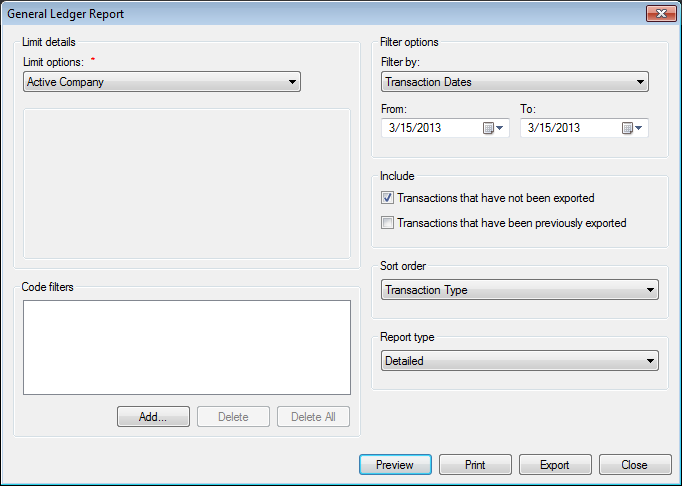
Figure 573: General Ledger Report
Supply the appropriate criteria for the limit option and/or code filters
Limit by. This option allows you to run the report either by a specified transaction date range or a session number
From/To. Enter the dates for which to find transactions. The dates shown in each field are included in the range
Session No. If limiting by session number then supply the specific session number
Include. Specifies what transactions to export: those that have not been exported and/or those that have not previously exported
Sort order. Click the drop-down list arrow and select how you want to sort the report
Report type. Click the drop-down list arrow and select the type of information the report contains—Detailed, Condensed, or Summary
Select whether to Preview, Print or Export the data
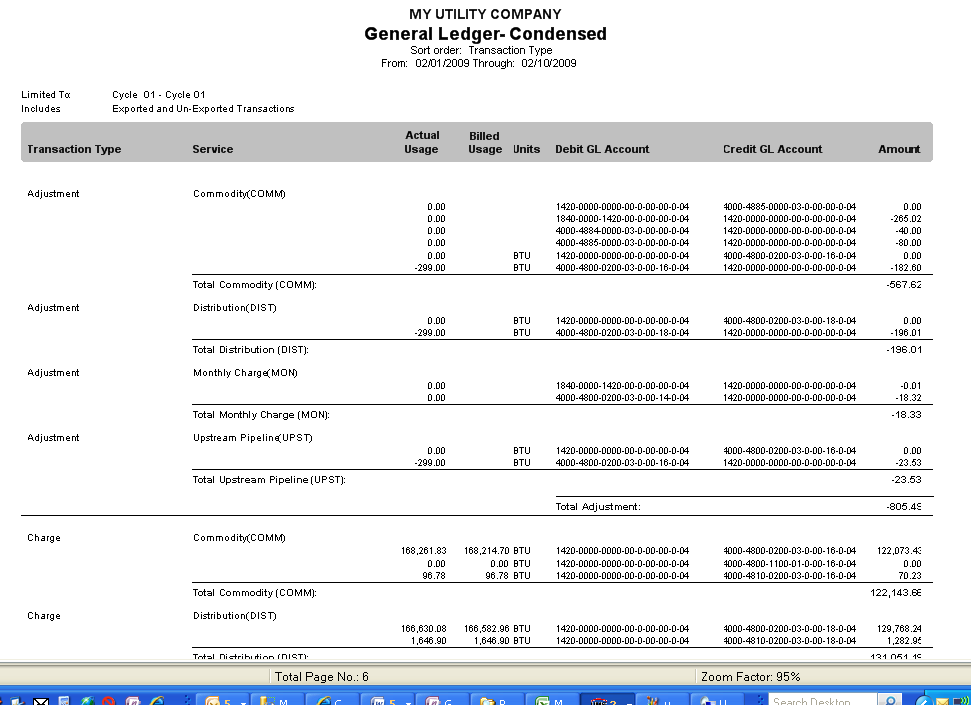
Figure 574: General Ledger Condensed Report
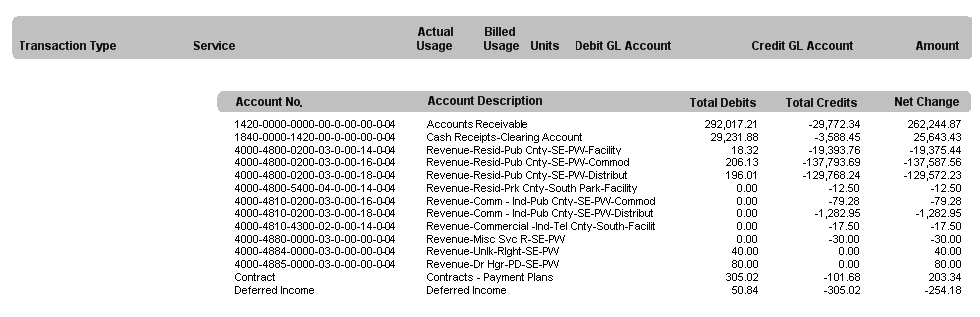
Figure 575: General Ledger Detailed Report

Figure 576: General Ledger Detailed Report
Understanding GL Transactions
The following table provides an explanation of how the UMS billing system creates the ledger transactions for each of the transaction types in UMS.
CHARGE RELATED |
|||||||
|---|---|---|---|---|---|---|---|
ID |
Transaction Type |
GLCode |
UMS Transaction Polarity |
Primary GL Transaction |
Secondary GL Transaction |
||
DEBIT |
CREDIT |
DEBIT |
CREDIT |
||||
1 |
Adjustment |
GLCode From the Tran Type that is Adjusted |
(-) ive |
Sales/Revenue |
Accounts Receivable |
||
(+) ive |
Accounts Receivable |
Sales/Revenue |
|||||
2 |
Charge |
GL Code from associated Rate Table |
(+) ive |
Accounts Receivable |
Sales/Revenue |
||
36 |
Collection Write-Off |
GLCode From the Rate |
(-) ive |
Collection Write-off Expense |
Accounts Receivable |
||
16 |
Collections Sold |
GLCode From the Tran Type that is Collection Sold is Created Against |
Sale Of Collectables |
Accounts Receivable |
|||
27 |
Contract |
tblRateContract.BaseGLCodeID |
(+) ive |
Long Term Receivables |
Deferred Income |
||
29 |
Contract Interest |
tblRateContract.InterestGLCodeID |
(+) ive |
Accounts Receivable |
Sales/Revenue |
||
30 |
Contract Payment |
tblRateContract.BaseGLCodeID, tblRateContract.InterestGLCodeID |
(-) ive |
Cash Receipts |
Accounts Receivable |
||
28 |
Contract Principal |
tblRateContract.BaseGLCodeID |
(+) ive |
Accounts Receivable |
Sales/Revenue |
Deferred Income |
Long Term Receivables |
31 |
Contract Transfer |
||||||
42 |
Convenience fee |
tblConvenienceFee.GLCodeID |
(+) ive |
Accounts Receivable |
Sales/Revenue |
||
5 |
Delinquency (Interest) |
tblSLIP.GLCodeID |
(+) ive |
Accounts Receivable |
Sales/Revenue |
||
5 |
Delinquency (Penalty) |
tblSLIP.GLCodeID |
(+) ive |
Accounts Receivable |
Sales/Revenue |
||
5 |
Delinquency (Shut-Off) |
tblSLIP.GLCodeID |
(+) ive |
Accounts Receivable |
Sales/Revenue |
||
4 |
Discount |
GLCode From the Rate |
(-) ive |
Discount Taken |
Accounts Receivable |
||
32 |
Lien Write Off |
tblSLIP.GLCodeID |
(-) ive |
Sales/Revenue |
Accounts Receivable |
||
6 |
Miscellaneous Charge. |
tblMiscCode.GLCodeID |
(+) ive |
Accounts Receivable |
Sales/Revenue |
||
10 |
NSF Fee |
GLCode From the Rate |
(+) ive |
Accounts Receivable |
NSF Fee |
||
43 |
Online final bill fee |
Not Implemented (Future Use) |
N/A |
N/A |
N/A |
||
11 |
Payment |
GLCode From the Tran Type that Payment is Applied Against |
(-) ive |
Cash Receipts |
Accounts Receivable |
||
14 |
Payment Reversal |
GLCode From the Tran Type that Payment is Applied Against |
(+) ive |
Accounts Receivable |
Cash Receipts |
||
33 |
Reconciliation Charge |
GLCode From the Rate |
(+) ive |
Accounts Receivable |
Sales/Revenue |
||
(-) ive |
Sales/Revenue |
Accounts Receivable |
|||||
19 |
Refund |
GLCode From the Rate |
(+) ive |
Accounts Receivable |
Refunds Due |
||
40 |
Reinstate Charge |
GLCode From the Rate |
(+) ive |
Accounts Receivable |
Sales/Revenue |
||
22 |
Reinstate Debt |
GLCode From the Tran Type that is Written Off and Reinstated |
(+) ive |
Accounts Receivable |
Bad Debt Recovered |
||
3 |
Tax |
tblTax.GLCodeID |
(+) ive |
Accounts Receivable |
Sales/Revenue |
||
8 |
Tax Lien |
tblSLIP.GLCodeID |
(+) ive |
Accounts Receivable |
Lien Receivable |
||
41 |
Transfer |
To be defined |
|||||
39 |
Void Contract |
tblRateContract.BaseGLCodeID |
(-) ive |
Deferred Income |
Long Term Receivables |
||
7 |
Work Order Fee |
tblWorkOrderCode.GLCodeID |
(+) ive |
Accounts Receivable |
Sales/Revenue |
||
15 |
Write-Off |
GLCode From the Tran Type that is Written Off |
(-) ive |
Bad Debt Expense |
Accounts Receivable |
||
44 |
Billing Adjustment |
(-) ive |
Sales/Revenue |
Accounts Receivable |
|||
(+) ive |
Accounts Receivable |
Sales/Revenue |
|||||
45 |
Rebate |
(-) ive |
Rebate Taken |
Accounts Receivable |
Figure 577: Understanding Charge Related General Ledger Transaction
The following table provides an explanation of how the UMS billing system creates the ledger transactions for deposit transaction types in UMS.
DEPOSIT RELATED |
|||||||
|---|---|---|---|---|---|---|---|
ID |
Transaction Type |
GLCode |
UMS Polarity |
Primary GL Transaction |
Secondary GL Transaction |
||
DEBIT |
CREDIT |
DEBIT |
CREDIT |
||||
18 |
Deposit - Interest Refund |
tblDeposit.GLCodeID |
(+) ive |
Deposit Interest Payable |
Deposit Refund Payable |
Checking Account |
Deposit Receipts |
24 |
Deposit Adjustment |
tblDeposit.GLCodeID |
(-) ive |
Deposit Liability |
Deposit Receivables |
||
(+) ive |
Deposit Receivables |
Deposit Liability |
|||||
12 |
Deposit Applied |
tblDeposit.GLCodeID |
(-) ive |
Deposit Liability |
Accounts Receivable |
Cash Receipts |
Deposit Receipts |
9 |
Deposit Charge. |
tblDeposit.GLCodeID |
(+) ive |
Deposit Receivables |
Uncollected Deposit Charges |
||
37 |
Deposit Consumed |
N/A |
|||||
23 |
Deposit Interest |
tblDeposit.GLCodeID |
(-) ive |
Deposit Interest Debit |
Deposit Interest Payable |
||
13 |
Deposit Interest Applied |
tblDeposit.GLCodeID |
(-) ive |
Deposit Interest Payable |
Accounts Receivable |
Cash Receipts |
Deposit Receipts |
38 |
Deposit Interest Consumed |
N/A |
|||||
25 |
Deposit Payment |
tblDeposit.GLCodeID |
(-) ive |
Deposit Receipts |
Deposit Receivables |
Uncollected Deposit Charges |
Deposit Liabilities |
26 |
Deposit Payment Reversal |
tblDeposit.GLCodeID |
|||||
17 |
Deposit Refund |
tblDeposit.GLCodeID |
(+) ive |
Deposit Liability |
Deposit Refund Payable |
Checking Account |
Deposit Receipts |
Figure 578: Understanding Deposit Related General Ledger Transactions
General ledger transactions resulting from Open Credits and Service open credits are dependent on the originating source of the credit transaction. The following table provides an explanation of the GL transactions resulting from various scenarios.
Open Credits / Service Open Credits (When applying to non-deposit transactions) |
|||||||
|---|---|---|---|---|---|---|---|
Originating Transaction |
Transaction Types |
UMS Polarity |
Primary GL Transaction |
Secondary GL Transaction |
|||
DEBIT |
CREDIT |
DEBIT |
CREDIT |
||||
Adjustment or Reconciliation Charge or Billing (Advance / Negative) or Billing Adjustment |
Credit |
Open/Service-Open Credit |
(-) ive |
Sales/Revenue |
Accounts Receivable |
||
Upon Re-Distribution |
Open Payment |
(-) ive |
Adjustment OC Clearing |
Accounts Receivable |
|||
Open Applied |
(+) ive |
Accounts Receivable |
Adjustment OC Clearing |
||||
Payment or Transfer or Convert SOC to OC |
Credit |
Open/Service-Open Credit |
(-) ive |
Cash |
Accounts Receivable |
||
Upon Re-Distribution |
Open Payment |
(-) ive |
Cash |
Accounts Receivable |
|||
Open Applied |
(+) ive |
Accounts Receivable |
Cash |
||||
Rebate |
Credit |
Open/Service-Open Credit |
(-) ive |
Rebate Taken |
Accounts Receivable |
||
Upon Re-Distribution |
Open Payment |
(-) ive |
Rebate Credit Clearing |
Accounts Receivable |
|||
Open Applied |
(+) ive |
Accounts Receivable |
Rebate Credit Clearing |
||||
Deposit Applied |
Credit |
Open/Service-Open Credit |
(-) ive |
Deposit Liability |
Accounts Receivable |
Cash |
Deposit Receipts |
Upon Re-Distribution |
Open Payment |
(-) ive |
Cash |
Accounts Receivable |
|||
Open Applied |
(+) ive |
Accounts Receivable |
Cash |
||||
Deposit Interest Applied |
Credit |
Open/Service-Open Credit |
(-) ive |
Deposit Interest Payable |
Accounts Receivable |
Cash |
Deposit Receipts |
Upon Re-Distribution |
Open Payment |
(-) ive |
Cash |
Accounts Receivable |
|||
Open Applied |
(+) ive |
Accounts Receivable |
Cash |
Figure 579: Understanding Open Credits/Service Open Credits General Ledger Transactions
Exporting General Ledger Transaction to an accounting application
Export GL Transactions
Through this function, you export GL transactions based upon a date range and/or those transactions that have not previously been exported. A new option introduced in UMS v4.4, titled Great Plains Accounting Interface, is now available but must be using the Advanced Accounting configuration.
- From the menu bar, select Posting>Export GL Transactions. The
Criteria to Export GL Transactions displays
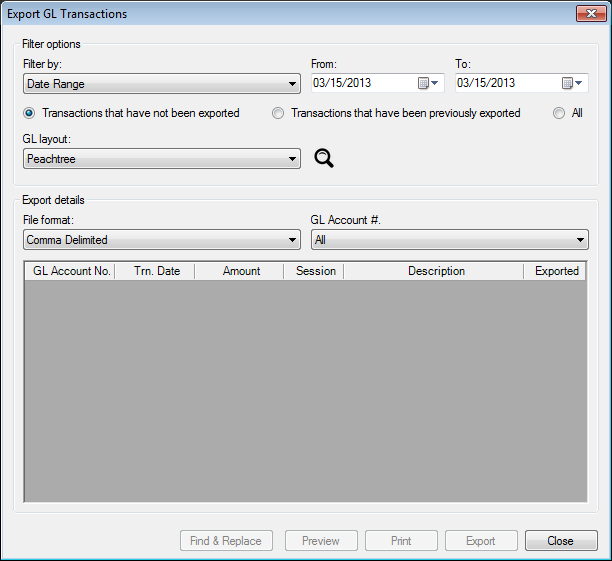
Figure 580: Exporting General Ledger Transactions
Filter by:
- Date Range: Enter the date range for which the transactions are
to be exported. The dates shown in each field are included in the range. (Note: The date range specified is against the transaction date)
- Session No.: Enter the session number that needs to be exported.
This option allows you to export a single session of posted transactions
Transactions to include:
Transactions that have not been exported: BY default only the transactions that have not been exported are selected
Transactions that have been previously exported: If you choose to export GL transactions that were already previously exported, a warning message appears about the possibility of duplicate GL postings. Click Yes to continue
All: Include both transaction that have been previously exported as well as the ones that have not been exported
Select GL Layout and Click the Search icon
Click OK
Great Plains Accounting Interface
In order to export to the Great Plains Accounting Interface:
UMS must be configured to use Advanced Accounting
Every transaction must fall within a fiscal period defined for the company
Each fiscal period must have a four digit code representing the fiscal year of the transaction
To export accounting data:
Select Great Plains from the GL layout drop-down menu
Click Search
 to retrieve the data to export
Click Export
The Enter Path and Filename window will appear
Choose a file to export and click OK
A window will appear indicating how many records were exported
Post Adjustments
To utilize this feature, the user must have appropriate permissions to
Post Adjustments to the General Ledger, select Adjustments from the
setup adjustment screen, print a Posting Totals Report from setup
adjustment, and view additional fields on the Setup Adjustment screen.
To access these changes go to Setup>Company. Click Edit
 and select the Company Options tab.
Note: A new field, RequireAdjustmentReasonCodes, has been added to tblCompany. The default value is false.
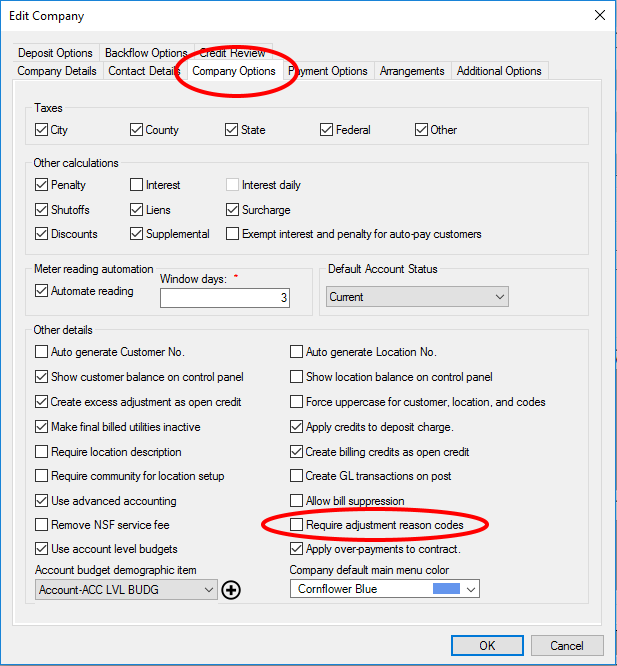
Figure 295: Require Adjustment Reason Codes
Click inside the box next to Require adjustment reason codes, then click OK.
Once the company is set up to require adjustment reason codes, a user must select a Reason Code on the Add/Edit Unposted Adjustment screen in order to save changes. To access this screen go to Miscellaneous>Adjustment.
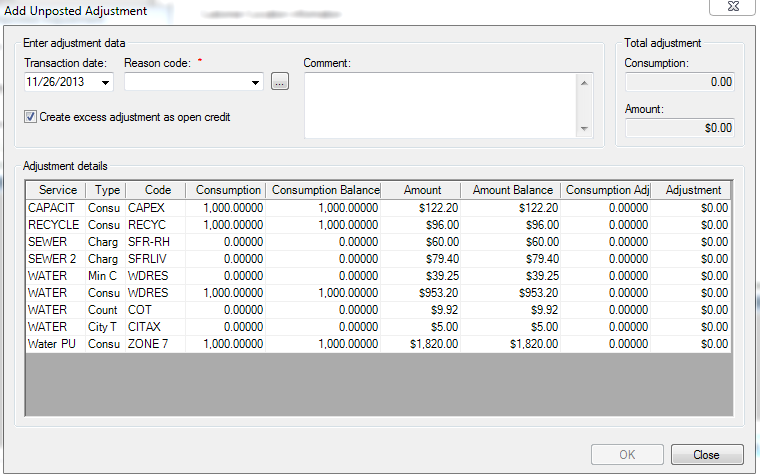
Figure 296: Add/Edit Adjustment
Transfer Payment Information: This contains information related to the payment selected from the CCP that is about to be transferred to another customer. It includes the date of when the transfer will occur, the total amount of the selected payment, and a list of services that the selected payment was applied.
A user must have permission to “Delete” for the Post Adjustment activity. To assign a user that role, go to Setup>Security>Roles>Closing. Click on the Delete column within the Post Adjustments field.
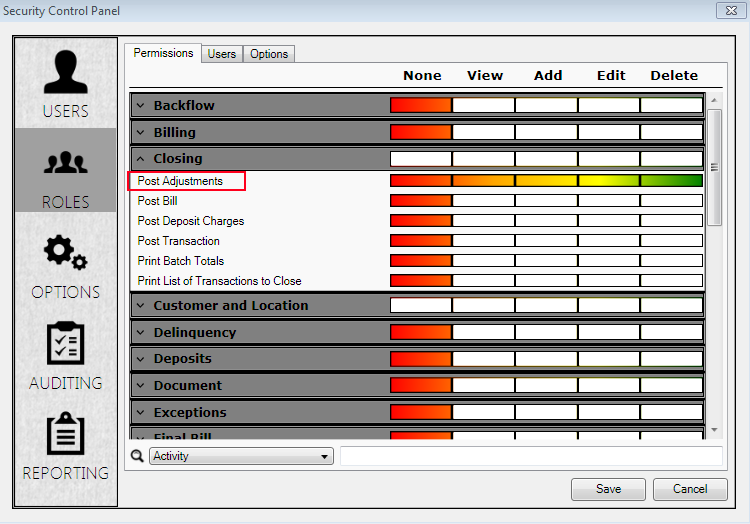
Figure 297: Post Adjustments-Security
Miscellaneous/Adjustments: A user with permission to post adjustments will be able to post selected adjustments. Unselected adjustments will remain unposted. To access this screen go to Miscellaneous>Adjustments.
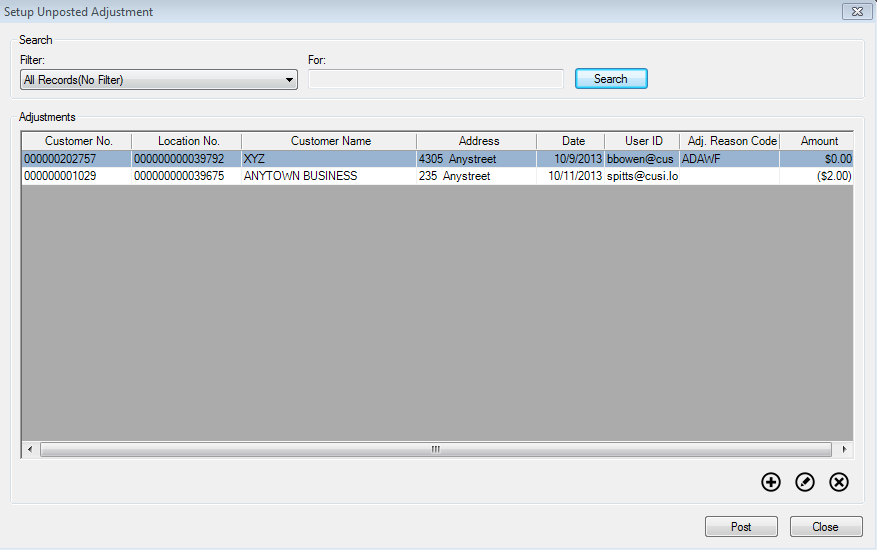
Figure 298: Setup Unposted Adjustment