Disallowed Pay Methods
Disallowed Pay Methods allows you to disable core payment methods for individual customers.
Setup Disallowed Pay Methods
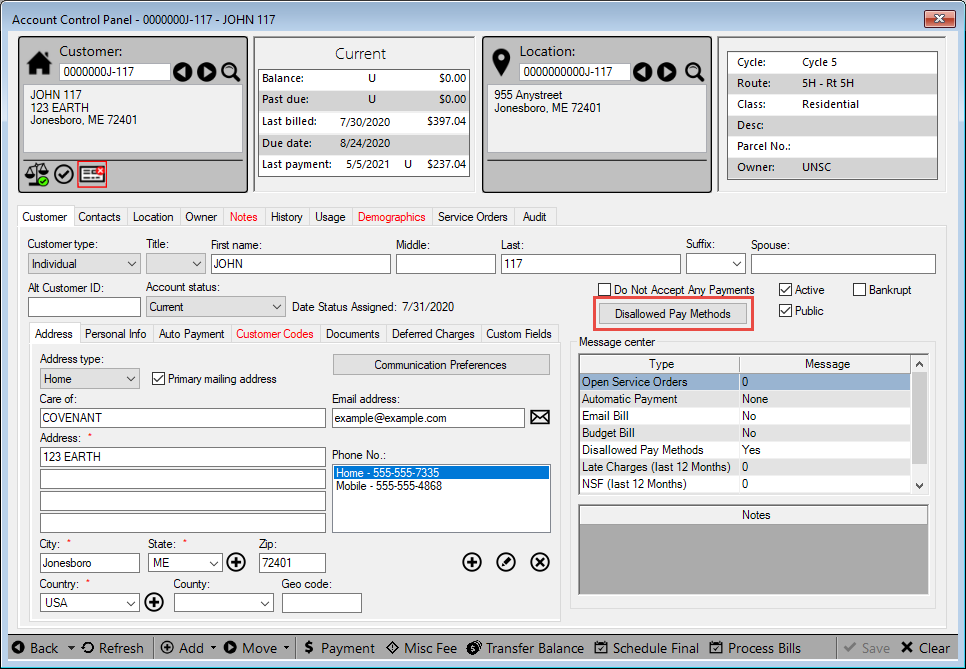
Navigate to the Customer tab on the Account Control Panel and click the Disallowed Pay Methods button.
Figure 640: Disallowed Pay Methods Button
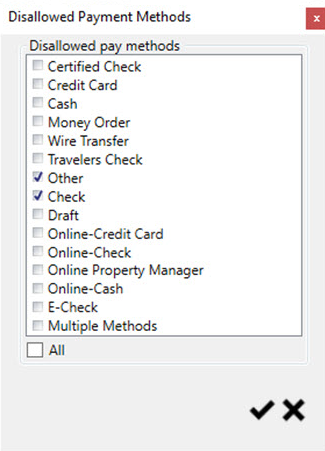
Select the pay methods you want to disable for the customer and save.
Figure 641: Disallowed Pay Methods Window
Closing or saving the Disallowed Pay Methods window will trigger UMS to review Auto Payment for the customer. If Auto Payment is established for the customer using a disallowed payment method, UMS will prompt you to remove the information.
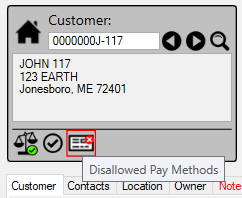
Customers with disallowed payment methods will be marked in the Account Control Panel with this icon.
Figure 642: Disallowed Pay Methods Notification
Note: Custom payment methods that are based on any of the selected core payment methods will also be disabled.
Note: Modifying Disallowed Pay Methods requires Setup Customer permissions of at least Edit.
Payments
Normal UMS Payments
UMS will display a payment note that lists all disallowed payment methods for a customer.
These payment methods will not appear in the pay method selection drop down, preventing the user from using that pay method.
Loading additional accounts into the payment will cause UMS to evaluate any addition disallowed payment methods for other customers. Those payment methods will be removed from the drop down in addition to those disallowed for the originally selected customer.
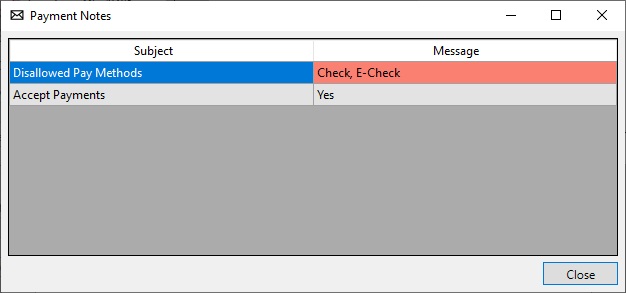
Figure 643: Disallwoed Payment Note
Auto Payments
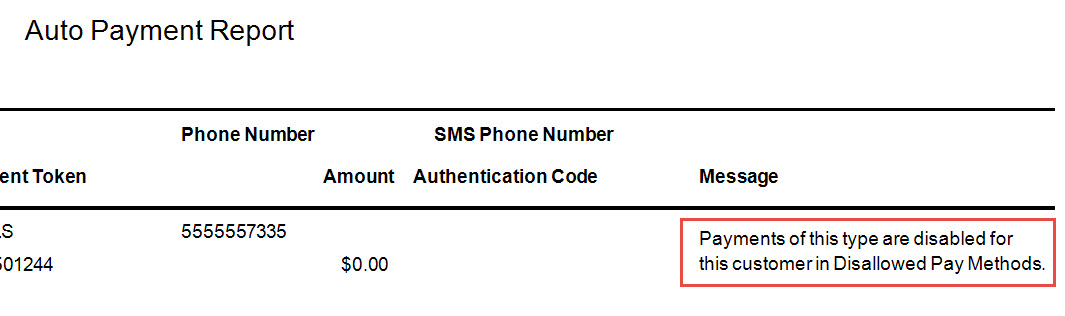
The Auto Pay process will catch customers with disallowed payment methods of Draft or Credit Card. These customers will appear in the Auto Pay wizard with a payment amount of $0.00 and will not be processed.
Figure 644: Disallowed Auto Payment Error