Communication Preferences
Communication Preferences gives customers the option to receive notifications for various operations that take place within UMS.
Note: For a customer to receive text messages it is necessary to opt into SMS, and then go through the setup communication preferences to select what operations will trigger notifications.
Setup Communication Preferences
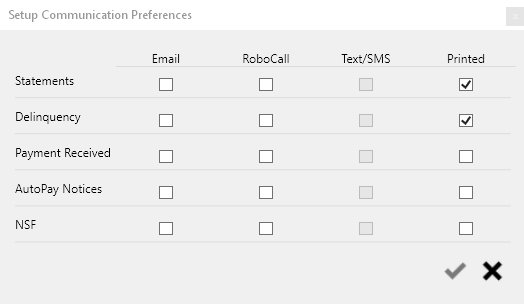
For customers navigate to the Address tab on the Account Control Panel and click the Communication Preferences button. For contacts navigate to the Contacts tab on the Account Control Panel, select contact you would like to edit and click the Communication Preferences button. Select desired communication preferences and save.
Communication Activity
Description
Statements
Notifies when statements have been calculated and posted.
Delinquency
Notifies when a delinquency has been created and posted.
Payment Received
Notifies when the utility has received a customer's payment.
AutoPay Notices
Notifies when an autopayment has been processed.
NSF
Notifies when a transaction is marked as NSF.
High Usage Notification
Notifies when usage is over a set amount.
Communication Type
Description
Notifications are sent by email.
RoboCall
Notifications are sent by robocall. (Requires AMS license)
Text/SMS
Notifications are sent by text. (Requires AMS license)
Printed
Notifications are sent by mail.
Opting into SMS Notifications
Through SMS
Customers can opt into receive SMS notification any time by texting their utilities short code to 67332.
Through UMS
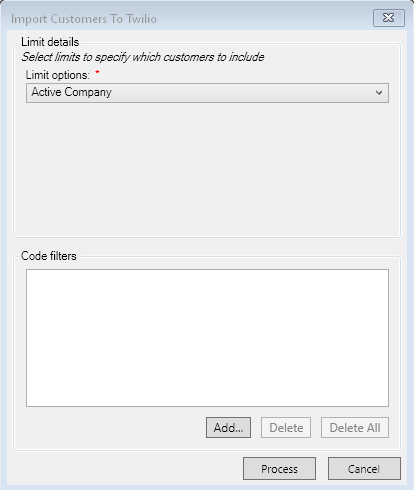
Management > Import Customers to Twilio: Admin users can also run the Import Customers to Twilio tool to sign customers up to receive SMS notifications.
Limit details. Select the desired Limit options and Code filters.
Note: Using this tool will create charges based on the number of phone numbers that are verified to ensure they are mobile numbers, and per each SMS sent.
Opting out of SMS Notifications
Customers must send STOP to 67332 to opt out.