AMS Interface
Setup
To setup the AMS Interface, navigate to the Tools menu and select Options.
Select the interface tab.
At this point there will be two choices, IVR Tech and Teleworks. For further description of both, refer below.
Message Templates
Pre 5.0
Pre 5.0 message templates are done in the style of Teleworks.
To setup message templates, you can navigate to Setup -> Company -> Message Template.
Enter a code
A code is a 1 to 6 character abbreviation for the template.
Enter a description for the code
The description may be up to 50 characters and it will identify the template.
Enter the Message Text
There are merge fields listed below that can be used to substitute different values specific to the contact being called.
Merge Fields Pre 5.0

Figure 611: Merge Fields Pre 5.0
Post 5.0
Post 5.0 message templates are done in the style of IVR Tech.
To setup message templates, you can navigate to Setup -> Company -> Message Template.
Enter a code
A code is a 1 to 6 character abbreviation for the template.
Enter a description for the code
The description may be up to 50 characters and it will identify the template.
Enter the Message Text
There are merge fields listed below that can be used to substitute different values specific to the contact being called.
Override Time Settings
Checking "Override Time Settings" will allow the user to override the time this template may be used.
Override Retry Settings
Checking "Override Retry Settings" will allow the user to override the max number of retries and duration for this template.
Merge Fields Post 5.0
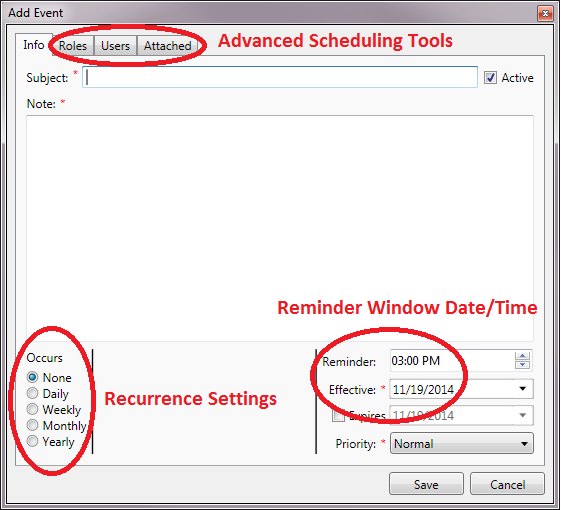
Figure 612: Merge Fields Post 5.0
Upgrade Pre 5.0 to Post 5.0
A migration script has been included inside the Installer that will change the Pre 5.0 Merge Fields into Post 5.0 Merge Fields so any templates that already exists inside UMS will still be fully functional with the new integration.
Twilio
Configuration
Use this screen to Add, Edit, Delete, and assign Twilio configurations.
Field |
Description |
|---|---|
Configurations |
Existing configurations that can be modified or assigned to a company. |
Selected configurations |
Allows users to assign Twilio configurations to a company. |
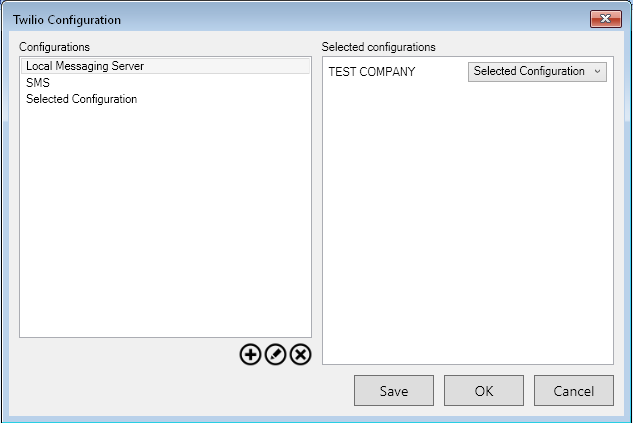
Add
Field |
Description |
|---|---|
Configuration Name |
User defined name for the Twilio configuration. |
Endpoint Url |
Url that points to the messaging server. |
API Key |
Unique identifier used to authenticate Twilio SMS requests |
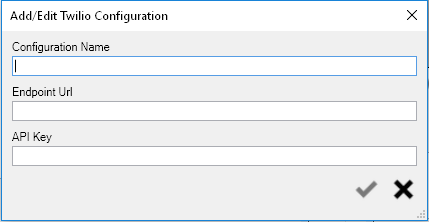
Teleworks
Configuration
Use this screen to configure the Teleworks interface. All fields are required.
Field |
Description |
Default |
|---|---|---|
Company |
The company associated with the configured Teleworks account |
First company |
Act as user |
The user assigned to impersonate the inbound functions |
Blank |
Start time |
The earliest local time at which a call should be placed. |
Blank |
End time |
The latest local time by which a call should be placed |
Blank |
Maximum retries |
The maximum number of times a call should be retried |
Blank |
Min retry duration |
The minimum amount of time that must pass between retries of the same phone number |
Blank |
Service URL |
The base URL to contact the IVRTech services to process outbound calls. |
Blank |
Application GUID |
The unique identifier for the service application. |
Blank |
Service user name |
The Teleworks application’s user name. |
Blank |
New service password |
The Teleworks application’s password for the Teleworks user. |
Blank |
Leave voicemail |
Tells the IVR application to leave a voicemail if the user fails to answer. |
Unchecked |
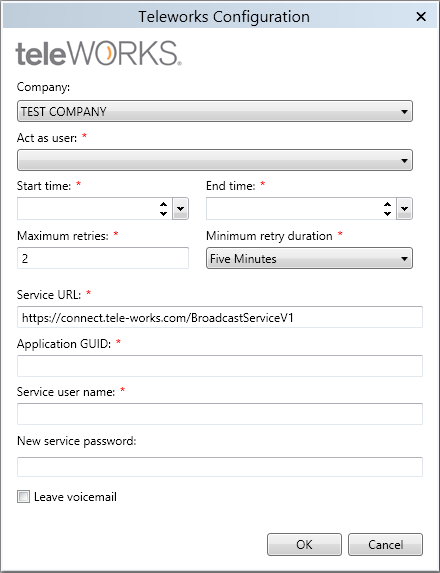
Figure 613: Teleworks
IVR Tech
Configuration
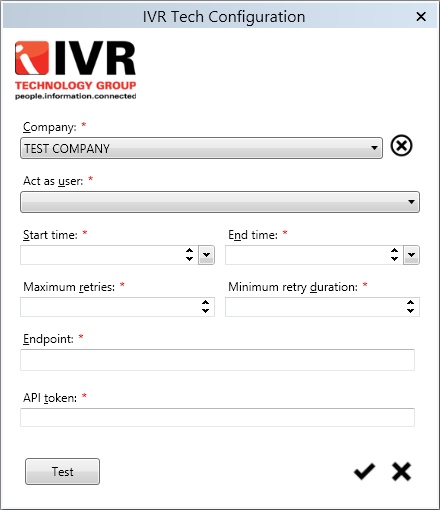
Use this screen to configure the IVRTech interface. All fields are required.
Field |
Description |
Default |
|---|---|---|
Company |
The company associated with the configured IVRTech account |
First company |
Act as user |
The user assigned to impersonate the inbound functions |
Blank |
Start time |
The earliest local time at which a call should be placed. |
Blank |
End time |
The latest local time by which a call should be placed |
Blank |
Maximum retries |
The maximum number of times a call should be retried |
Blank |
Min retry duration |
The minimum amount of time that must pass between retries of the same phone number |
Blank |
Endpoint |
The base URL to contact the IVRTech services to process outbound calls. |
Blank |
Api token |
The unique token assigned by IVRTech to authenticate with their services |
Blank |
Figure 614: IVR Tech
Broadcast Status
The following screen shows a listing of the Broadcast (calls)
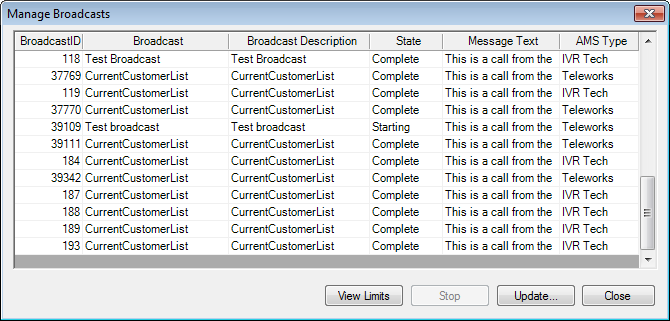
Figure 615: Manage Broadcast Status
Click on “View Limits” to see limit details of the broadcast (see screen below)
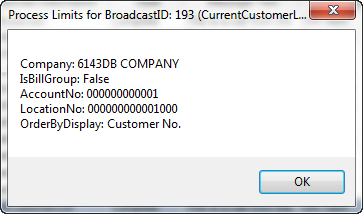
Figure 616: Manage Broadcast Limits
Highlight a line item and double click to see the details of the Broadcast. Details will include BroadcastID, Broadcast Name and Message Template used for the call. A list of all the calls will appear showing the Customer Account Number, Customer’s name, Dialed Number, Date of the call, Call Attempts and Call Result.
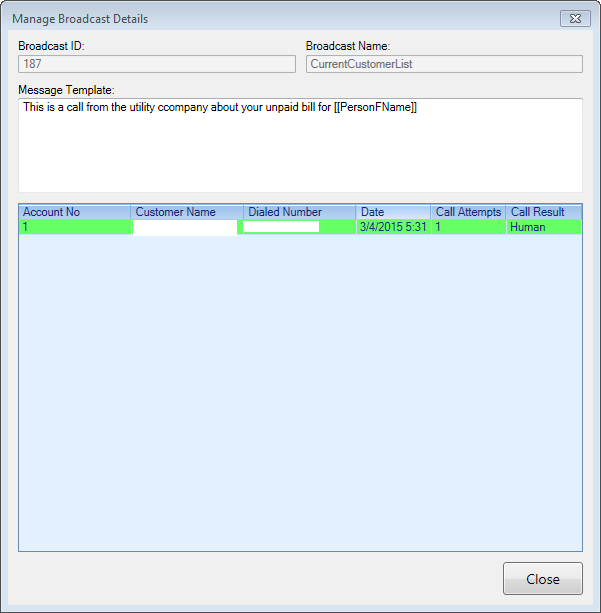
Figure 617: Manage Broadcast Details